In this guide
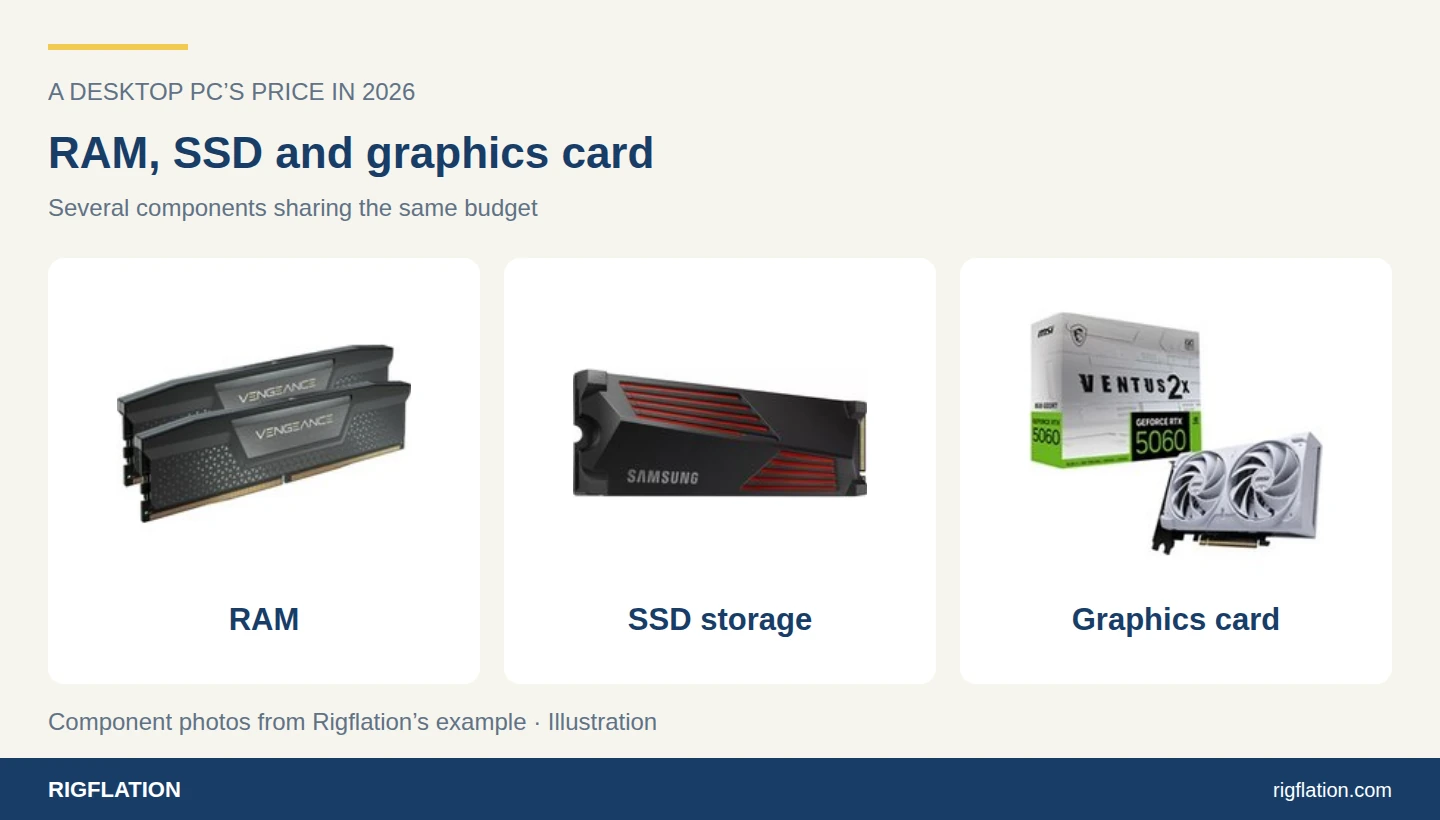
For someone starting from scratch on a tight budget, 2026 has the ingredients of one of the worst recent periods to buy a desktop. Graphics cards are expensive, RAM forces compromises, and storage eats into money you would rather spend elsewhere.
On Reddit, one user describes saving around $1,500, then discovering their planned build would cost $500 more. This is one person’s experience in the United States, but it captures how discouraging it is to watch a goal move further away while you save. Their account on r/buildapc
![RaceGuy3401’s account: I had around 1500$ saved up for the build […] and my dream build is suddenly 500 dollars more expensive.](/assets/guides/temoignage-budget-reddit-en.89b20bb3aab30b29.webp)
If you can keep using your current equipment, postponing the purchase is a valid choice. If you need a desktop now, a few decisions can lower the bill without leaving you with a disappointing machine.
The crypto boom comparison has limits
Mining shortages left memories of graphics cards that were impossible to find or sold at absurd prices. The difficulty in 2026, when planning an entirely new build, is having to compromise on several major parts at once.
Memory and storage were under pressure in earlier crises too. TrendForce described rising DRAM prices in 2021, and Chia mining also disrupted the storage market. Saying that only graphics cards became more expensive back then would be inaccurate. 2021 DRAM analysis, Tom’s Hardware on storage and Chia
For your purchase, the question remains practical: what complete system can you afford today, and which compromises will you actually notice when using it?
Start with your games and monitor
Before choosing a graphics card, write down what you want to run and on which monitor. Gaming at 1080p with sensible settings needs a different build from one targeting 4K and the most demanding visual effects.
Put your goal in one sentence. For example: play your usual games smoothly at 1080p without always selecting maximum settings. That will help you compare two quotes more than a vague promise of an “ultra-powerful gaming PC.”
Intel’s guide to balancing a PC explains that the CPU, graphics card and monitor should suit the workload. One component that costs far more than the others does not necessarily deliver the expected improvement. Intel’s guide to performance bottlenecks
If you also edit video, create 3D work or handle large files, add those applications to your list. A desktop suited to a lightweight game may lack the memory you need for work.
Get a DDR4 quote when money is tight
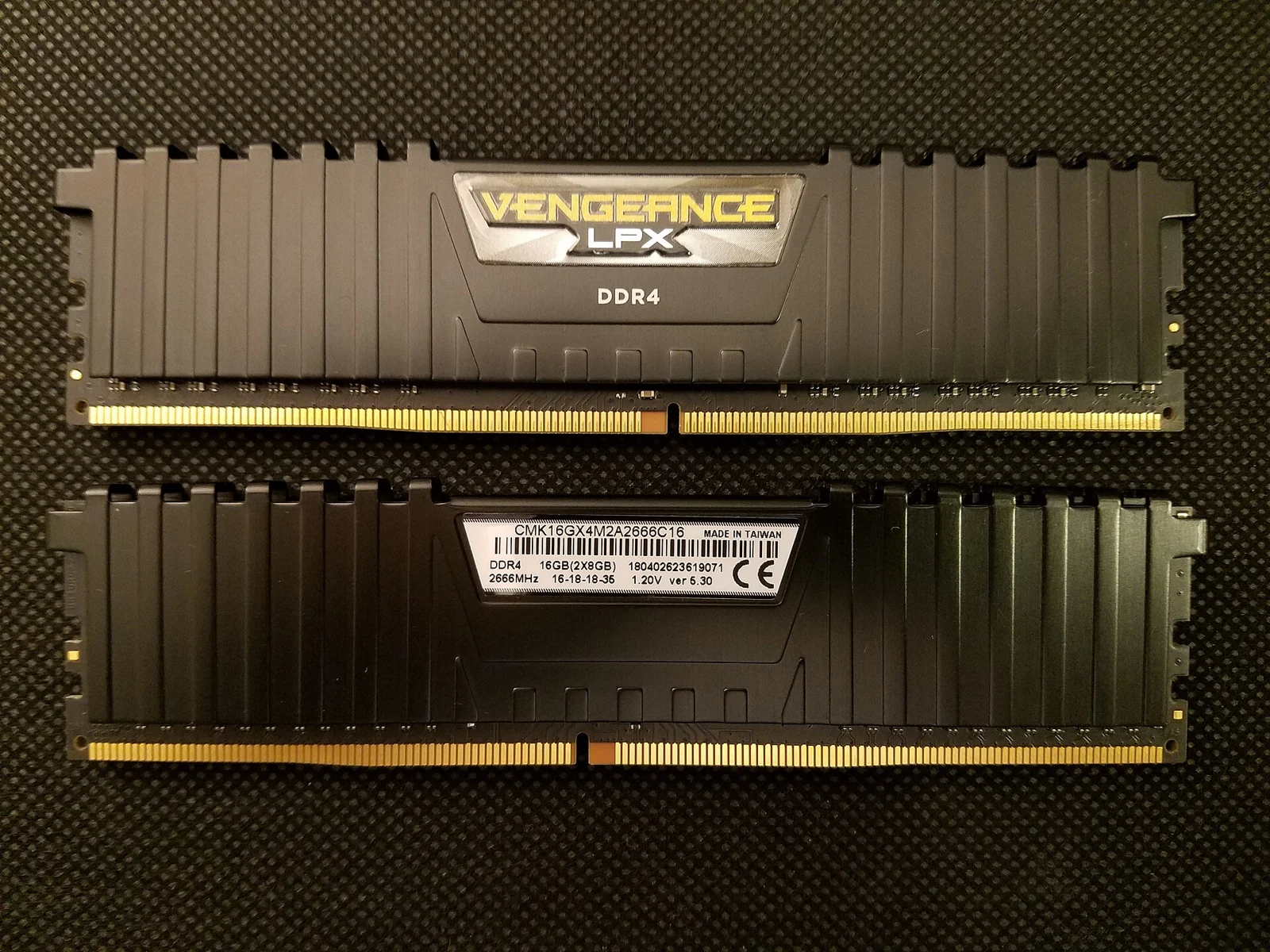
A DDR4 build can be worth considering, especially if you already own compatible memory. Compare it with a DDR5 option before ruling it out because of its age.
Calculate two totals: CPU, motherboard and RAM for the first platform, then those same three items for the second. Add cooling if changing platforms requires a replacement. That complete difference is what matters.
In “DDR4 in 2026”, a buyer is aiming for a roughly €1,000 desktop and considering keeping their 16GB of DDR4. The useful idea is reusing a part already paid for. The CPUs suggested in replies still need to be assessed against current prices.
A sought-after older model can be too expensive for what it offers. If the gap to DDR5 becomes small, reconsider. If DDR4 keeps you within a firm spending limit, that saving may matter more than a distant upgrade opportunity.
Always check the exact motherboard. AMD AM4 uses DDR4, while AM5 uses DDR5. Some Intel families have separate DDR4 and DDR5 motherboards. The modules are not interchangeable. Kingston explains compatibility
Keep parts that still do their job
Replacing an old desktop does not necessarily mean buying everything again. A roomy enough case, a healthy SSD or compatible cooling can still be useful.
The power supply needs a closer check: exact model, condition, wattage and connectors suited to the new build. If you replace a modular power supply, use cables compatible with the new model. Similar-looking plugs do not mean the cables are interchangeable. Corsair’s advice on modular PSU cables
For storage, check the available connections. “M.2” describes a form factor and does not confirm compatibility on its own: check the interfaces supported by both the slot and SSD. The motherboard manual is the place to settle this. Kingston’s SATA and M.2 SSD FAQ
Then calculate an all-new desktop and one reusing those parts. The saving will mean more than a discount on a component you did not need.
Cut spending where you will notice it least
When money is short, start with the case, lighting, cooling and motherboard features you will not use. A dramatic front panel or a large liquid cooler can wait if simpler equipment meets the build’s needs.
For RAM, use your applications’ recommendations and your simultaneous workloads as a starting point. A gaming PC with 16GB can be an initial compromise, but some games and uses need more. Compare the module count and available slots too: a future addition needs to be compatible and included in your calculations.
The same applies to the SSD. Choose enough capacity for your software and games, with free space left over. Paying more for a higher advertised speed is of little use if you have to uninstall games every week because the drive is full.
Do not, however, let the power supply become an unnamed line in the quote. You should know what will power the desktop.
Compare bundles and prebuilts too
A CPU, motherboard and RAM bundle may cost less than the same parts ordered separately. Check the exact contents and total price rather than the advertised discount.
Add a few prebuilts to the comparison. Assembly, an operating system where included, and support can come at a competitive total price. Shortages have made this detour especially useful, even for someone who knows how to build a PC.
Read the full specification, though. Two desktops with the same graphics card can have very different power supplies, storage and upgrade options. Our prebuilt versus DIY guide explains the comparison.
Used hardware helps if you can check it
A complete used desktop can sometimes provide several parts at a more manageable price. Ask for exact model names, interior photos and a working demonstration. For a graphics card, request a test under load and check the outputs you will need.
Include likely replacements in the price. A cheaper desktop that immediately needs a power supply, SSD and RAM can lose its advantage. An ad saying only “i7, big graphics card, gaming PC” does not provide enough information to do the math.
Reddit bargain stories offer ideas for where to look, but prices depend on the city, country and condition. Your comparison needs to concern a specific listing and a machine you can inspect.
Wait if you can, and buy for your needs
If your current computer still meets your needs, delaying the purchase can avoid an immediate expense. That is different from betting on a guaranteed price drop at the next sales event.
If you must buy, set a complete budget including the monitor and accessories, then choose among builds that fit it. Ordering individual components over several months can complicate testing and returns: you need to test the parts together within the applicable deadlines.
Before paying, save a dated copy of the quote with all model names. Check the delivered total once more. During sharp price increases, this exact machine at this exact price needs to work for you.